The advent of web fonts popularised the use of icon fonts, i.e. fonts that consist solely of symbols and images rather than letters. Icon fonts such as Pictos, Font Awesome and Lucide have become well-known alternatives to image sprites, offering greater convenience and versatility. However, despite the abundant choice, pre-made sets don’t always meet the requirements of a specific website.
This article demonstrates how to create a custom icon font using FontForge. It describes the steps of importing an SVG image into a glyph in a web font. A tailor-made font lets you select icons that perfectly match your website’s needs.
Step 1: Getting the image
Some SVG files require minor adjustments to work seamlessly in a web font. For example, if an element is used to create a ‘hole’ through another element (as seen in BBC, LinkedIn or Samsung logos), it should be ‘merged’ with the base to produce a single path element that incorporates the ‘hole’. Inkscape’s Union and Difference operations can help with that. It’s also prudent to inspect all paths for any anomalous nodes, self-intersecting contours or open paths.
For this tutorial, I’ve prepared the Bluesky logo devoid of such issues. The official SVG image has a minor oddity with its shape which may lead to a self intersecting path and rendering artefacts. I’ve fixed that problem in the provided file. You can grab the SVG file and carry on with the next step.
Step 2: Creating the font
Now launch FontForge. If this is the first time starting the application, it’ll open with an empty font; otherwise, ‘File’ → ‘New’ (Ctrl+N) will create a new font. A few settings require changing before importing the image.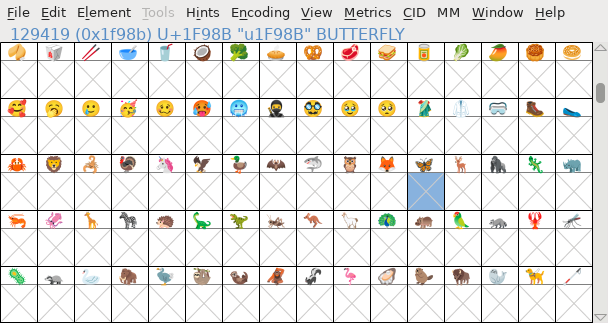 Fig. 1 Main FontForge window. (Click on the image to open it on its own).
Firstly, we need to name the typeface. Go to ‘Element’ → ‘Font Info’ (Ctrl+Shift+F) dialogue. In ‘PS Names’ section set ‘Fontname’ to a name of your choosing, e.g. ‘MyIcons’.
Secondly, we need to set the font’s em size or units per em (UPM). By convention OpenType fonts use 1000 units while TrueType fonts use powers of two with 1024, 2048 and 4096 being the most common. All glyphs’ control points must be aligned to the grid so theoretically higher em size allows for more detailed shapes; in practice 1024 is sufficient. In the ‘General’ section of the ‘Font Info’ dialogue, set ‘Em Size’ to ‘1024’. You can now close the dialogue.
Lastly, we need to use Unicode encoding in the font since we’re going to define a character from the Supplementary Multilingual Plane (SMP). By default, FontForge uses ISO-8859-1 encoding. This can be changed via ‘Encoding’ → ‘Reencode’ → ‘ISO-10646-1 (Unicode Full)’.
Step 3: Importing the image
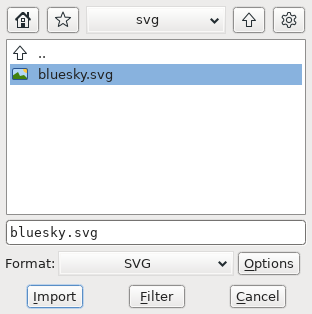 Fig. 2 FontForge ‘Import’ dialogue. (Click on the image to open it on its own).
Now, find the U+1F98B butterfly character in the main FontForge window (shown in Fig. 1).1 This can be done via ‘View’ → ‘Goto’ (Ctrl+Shift+>) which accepts the U+NNNN notation. Once found, double-click the box corresponding to the character to open the glyph editing window. In that window, import the prepared SVG icon with ‘File’ → ‘Import’ (Ctrl+Shift+I) dialogue. Make sure you change ‘Format’ to ‘SVG’, as shown in Fig. 2, or the import will fail. With the image imported, only a few minor adjustments are necessary.
- Resize the glyph to fit the icon by setting the bearings to zero in ‘Metrics’ → ‘Set Both Bearings…’. (Negative values are also valid).
- Add points at extremes via ‘Element’ → ‘Add Extrema’ (Ctrl+Shift+X). They help the render engine when the points don’t fall at a pixel boundary.
- Finally, move the control points to integer positions. This is required in TrueType fonts and can be done via ‘Element’ → ‘Round’ → ‘To Int’ (Ctrl+Shift+_).
It may be helpful to include the space character as well. With the glyph editing window still open, use ‘View’ → ‘Goto’ (dot) to jump to U+0020 and then via ‘Metrics’ → ‘Set Width…’ (Ctrl+Shift+L) set its size to 240.2
Now create the web font via ‘File’ → ‘Generate Fonts…’ (Ctrl+Shift+G). Use a Web Open Font Format (WOFF2) and create MyIcons.woff2 file. FontForge will run validation steps, but since we’ve addressed all the issues already, the font will generate without a glitch. For future editing, you can also save the font as MyIcons.sfd file (although FontForge is capable of opening the WOFF2 file).
Step 4: Using the font on a website
Before the custom font can be used on a website, it has to be defined in a CSS file using the @font-face rule as shown below:
@font-face {
  font-family: MyIcons;
  font-style: normal;
  font-weight: 400;
  font-display: block;
  /* File path is relative to the CSS file
        or absolute to website’s root. */
  src: url(/path/to/MyIcons.woff2) format('woff2');
}
.my-icons {
  font-family: MyIcons;
}
Once done, it can be used like any other font, e.g. <span class=my-icons>🦋</span> markup will produce: 🦋.
Accessibility and fallback behaviour
Key considerations when using an icon font include accessibility and fallback behaviour when the font isn’t loaded. Even though web fonts are widely supported, there are numerous reasons why web fonts might not be used, including user configuration forcing a specific font (e.g. OpenDyslexic) or the file not being downloaded to conserve bandwidth.
Screen readers
Depending on the character the image is mapped to, screen readers may say the name of the Unicode character, a cryptic ‘symbol codepoint’ message, nothing or something else completely as chosen by their developers. Because of this, the icon should be hidden from screen readers using an aria-hidden attribute, as in:
<span class=my-icons aria-hidden=true>🦋</span>
At the same time, if the icon carries information unavailable through other means, an additional label is necessary. In the case of buttons and links, an aria-label attribute can be used, as in:
<button aria-label=Bluesky>
  <span class=my-icons aria-hidden=true>🦋</span>
</button>
However, the attribute is not always allowed. Another approach is to introduce an element hidden from visual browsers. There’s no ‘screen reader only’ attribute or CSS property,3 but a class giving that effect can be created as follows:
<style>
  .sr-only {
    position: absolute;
    left: -10000px;
    width: 1px;
    height: 1px;
    clip: rect(0 0 0 0);
    clip-path: inset(50%);
    overflow: hidden;
  }
</style>

<button>
  Share on
  <span class=my-icons aria-hidden=true>🦋</span>
  <span class=sr-only>Bluesky</span>
</button>
The sr-only class can be applied to any element to render it invisible while remaining perceivable by screen readers. Combining it with aria-hidden allows pairing visual-only icons with screen-reader-only labels.
Alternatively, if the icon is added through a content property of a pseudo-element, an alternative content after a forward slash should be included. This syntax is supported by 95% of browsers and can be applied as follows:
<style>
  .bluesky::before {
    font-family: MyIcons;
    /* To support old browsers: */
    content: '🦋 ';
    /* Screen readers will ‘see’ the text. */
    content: '🦋 ' / 'Bluesky ';
  }
</style>

<a href=//bsky.app/profile/mina86.com>
   class=bluesky>@mina86.com</a>
Fallback
Since we’ve defined a glyph for an existing Unicode character, if the font is not used, the browser will fall back to one of its system fonts. For example, compare:Fig. 3 The butterfly character. First, reference SVG image. Second, the character rendered with our custom font (should look like the reference). Third, the character using browser’s default font.
An advantage of a custom font is that fallback behaviour can be tailored to best fit the website. While it’s not ideal to see a butterfly image instead of a Bluesky logo, ‘Share on 🦋’ is is undoubtedly a more graceful failure mode than ‘Share on ’ which might happen on websites using Font Awesome if the icon font is not loaded.
Unfortunately, Unicode does not have characters for arbitrary icons. Picking one as a fallback is not always possible. The next article describes how ligatures can be used to address accessibility and fallback issues.1 If you’re using your own icon, you’ll probably need to pick a different mapping for it. If there’s no other matching Unicode character, use a slot in the Private Use Area (PUA) which spans U+E000–U+F8FF. ↩
2 In some contexts, space character may be the simplest way to control spacing around the icon. For greater flexibility, other white-space characters can be added, including:
| Character | Width |
|---|
| U+0020 space | 240 | approx. 1/4 em |
| U+00A0 no-break space | 240 | same as space |
| U+2002 en space | 512 | 1/2 em |
| U+2003 em space | 1024 | 1 em |
| U+2004 three-per-em space | 341 | 1/3 em |
| U+2005 four-per-em space | 256 | 1/4 em |
| U+2006 six-per-em space | 170 | 1/6 em |
| U+2009 thin space | 205 | approx. 1/5 em |
| U+200A hair space | 85 | approx. 1/12 em |
| U+202F narrow no-break space | 120 | 1/3–1/2 of space |
Widths are provided at 1024 UPM based on recommendation from the Microsoft Typography documentation. Strictly speaking, web browsers will fall back to other fonts if necessary but that reduces control over the spacing and may cause needless loading of other web fonts. ↩
3 CSS 2.1 has a speak property which allows preventing element from being read, but no browser implements it correctly. As of now, CSS speech module cannot be relied on in web development. ↩